The Applied Test Systems (ATS) WinCCS Status Viewer Software is a Windows PC application that integrates with the WinCCS system to display system status in a user-friendly, customizable format on large format displays.
Users are able to define the base units, number and size of “lab” buckets, lab columns, and other settings.
View Screen
The data extracted can be observed on the main view screen. The user's configured setup is saved in settings files, which determines how the data is presented.
Every two seconds, the View is refreshed. The View information is divided into the following sections:
Lab Views
The “lab” is a bucket with different columns and data points that can be set up differently for every experiment. It is possible to rename the "lab" to better reflect the user's expectations.
Up to five laboratories can appear in each main view, and each lab can connect up to 21 individual columns.
To improve readability, every lab in a single instance of the program will utilize the same number of specified rows; however, each lab does not need to fill out the whole set of rows.
A single XML file, whether exclusive to the lab or shared with multiple laboratories, can be referenced by each lab. Every lab on the display also has an associated "weight" that can be used to adjust its size in relation to other laboratories.
Column Header
The different columns will be divided by the column headings, which also show the label corresponding to each column. The specific columns can be set up for each lab and arranged in any desired order, as was previously indicated.
Each column has a “weight” that determines its size in relation to other columns in the lab.
Get in touch now
Column Units
The column units row provides information about the units and can also format the data in the associated rows. While most of these units are conventional, it is important to remember that some columns may not contain any units, leaving the label blank.
The established identifier is used to describe estimated units, such as the remaining time column.
Frame Data
Data for a specific frame (machine) from the associated lab’s .xml file is displayed in separate rows. The rows are listed in alphabetical order by specimen name. If a single lab configuration cannot display all frames, users can start and stop the display at certain frame indices.
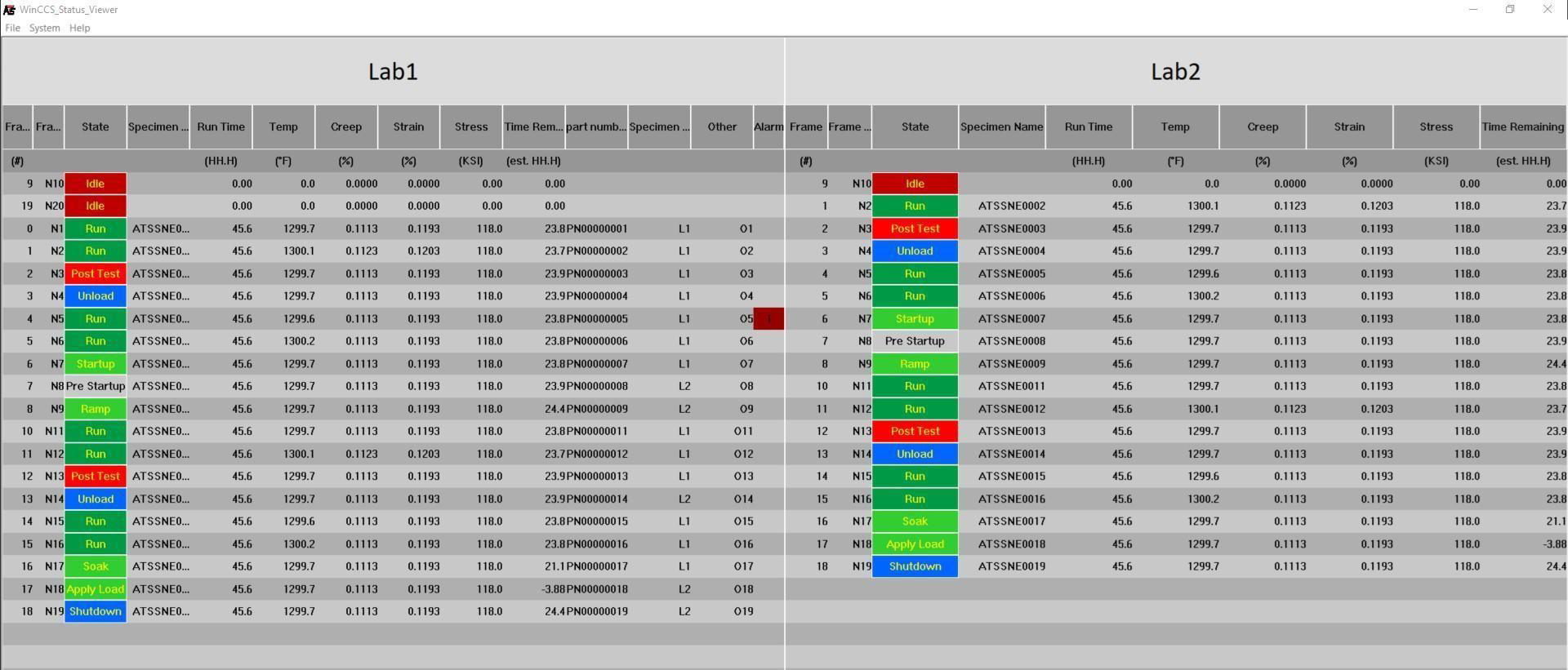
ATS Viewer Sample Main View. Image Credit: Applied Test Systems